#!/bin/bash
# if you don’t have anything installed, do this first:
# sudo apt install imagemagick exiftool zip
# python3 -m pip install ‘git+https://github.com/ORB-HD/deface’
# This version will (sorry I am using European way of writing: day-month-year and h means hours):
# Step 0: Backup original pictures
# Step 1: Normalize IMG_*.jpg filenames from phone, for example IMG_20250906_115115.jpg will become 01-6.sept.2025-115115.jpg
# 2. Rename files from HHMMSS to HH.MMh + Avoid filename conflicts by adding _1, _2, etc.
# 3. Resize all .jpg files to width 1200px (keeping aspect ratio) using mogrify, change 1200x to any dimension you want
# 4. Strip all EXIF metadata using exiftool
# 5. Remove the .jpg_original backup files created by exiftool
# 6: Add incremental number prefixes (01-, 02-, …) to files
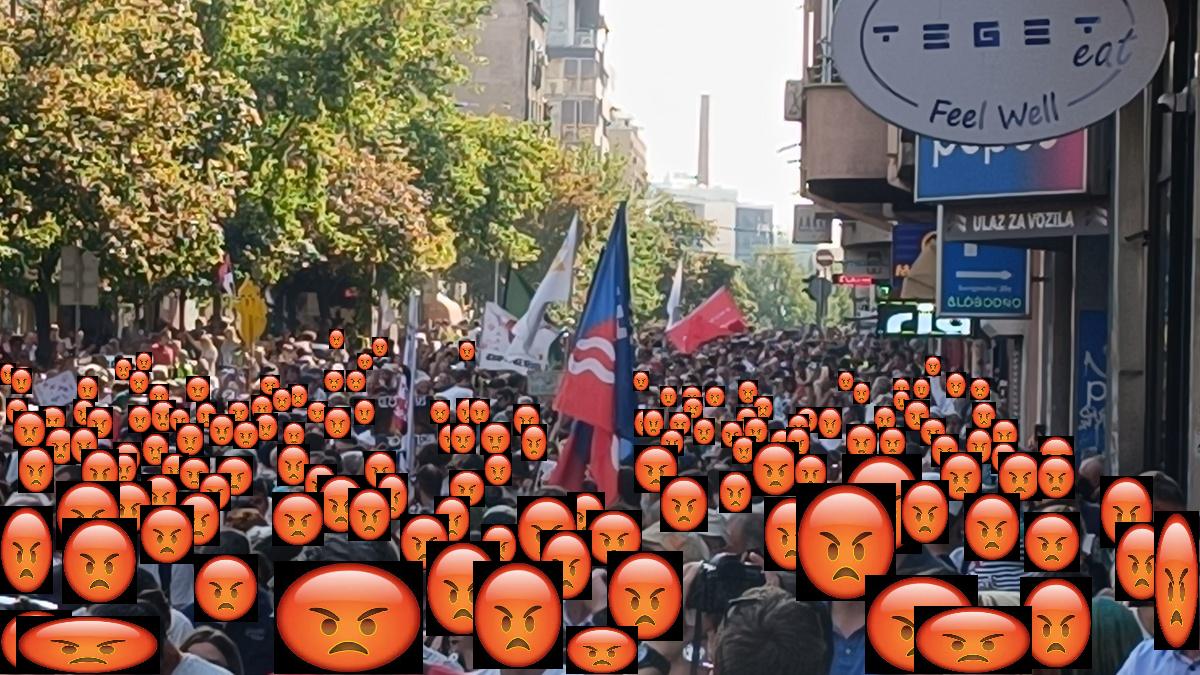
# 7: Face protection options: just blur or covering faces with angry smiley, change PATH of smiley if it is different folder and name, mine is: home/kali/Pictures/angry.jpg
# 8: Delete only original (non-processed) images
# the example-result will be:
# IMG_20250906_115115.jpg
# IMG_20250906_120105.jpg
# backup.zip # original images zipped
# 01-6.sept.2025-11.51h.jpg # renamed, resized, stripped
# 02-6.sept.2025-12.01h.jpg
# 01-6.sept.2025-11.51h-blur.jpg # if blur selected
# 02-6.sept.2025-12.01h-blur.jpg
shopt -s nullglob

jpgs=(*.jpg)
if [ ${#jpgs[@]} -eq 0 ]; then

echo "❌ No JPG files found. Exiting."

exit 1

fi
# Step 0: Backup originals
echo “Creating backup of original files…”
zip -9 backup.zip *.jpg > /dev/null 2>&1
# Step 1: Normalize IMG_*.jpg filenames from phone
for file in IMG_*.jpg; do
if [[ “$file” =~ ^IMG_([0-9]{4})([0-9]{2})([0-9]{2})_([0-9]{6})\.jpg$ ]]; then
year=”${BASH_REMATCH[1]}”
month=”${BASH_REMATCH[2]}”
day=”${BASH_REMATCH[3]}”
time=”${BASH_REMATCH[4]}”
# Convert month number to name (e.g., 09 → sept)
case “$month” in
01) monthname=”jan” ;;
02) monthname=”feb” ;;
03) monthname=”march” ;;
04) monthname=”april” ;;
05) monthname=”may” ;;
06) monthname=”june” ;;
07) monthname=”july” ;;
08) monthname=”aug” ;;
09) monthname=”sept” ;;
10) monthname=”oct” ;;
11) monthname=”nov” ;;
12) monthname=”dec” ;;
*) monthname=”$month” ;;
esac
newname=”${day}.${monthname}.${year}-${time}.jpg”
mv “$file” “$newname”
echo “Renamed phone image: $file → $newname”
fi
done
# Step 2: Rename HHMMSS to HH.MMh format
for file in *.jpg; do
if [[ “$file” =~ ^(.*-)([0-9]{2})([0-9]{2})([0-9]{2})\.jpg$ ]]; then
prefix=”${BASH_REMATCH[1]}”
hour=”${BASH_REMATCH[2]}”
minute=”${BASH_REMATCH[3]}”
newbase=”${prefix}${hour}.${minute}h”
newfile=”${newbase}.jpg”
count=1
while [[ -e “$newfile” ]]; do
newfile=”${newbase}_$count.jpg”
((count++))
done
mv “$file” “$newfile”
echo “Renamed: $file → $newfile”
else
echo “Skipped (no match): $file”
fi
done
# Step 3: Resize images to width 1200px using mogrify… change 1200x to any dimension you want
echo “Resizing images to 1200px width…”
mogrify -resize 1200x *.jpg
# Step 4: Remove all EXIF metadata using exiftool
echo “Stripping EXIF metadata…”
exiftool -all= *.jpg
# Step 5: Delete backup files created by exiftool
echo “Cleaning up EXIF backups…”
rm -f *.jpg_original
# Step 6: Add incremental number prefixes (01-, 02-, …) to files
echo “Adding numeric prefixes to final filenames…”
count=1
for file in $(ls -v *.jpg); do
prefix=$(printf “%02d” $count)
newname=”${prefix}-${file}”
mv “$file” “$newname”
echo “Renamed: $file → $newname”
((count++))
done
# Step 7: Face protection options: just blur or covering faces with angry smiley
echo “Choose face protection method:”
echo “1) Blur faces”
echo “2) Add angry face overlay”
echo “3) Skip”
read -p “Enter choice [1-3]: ” choice
if [[ “$choice” == “1” ]]; then
echo “Blurring faces using deface…”
shopt -s nullglob
jpgs=(*.jpg)
if [ ${#jpgs[@]} -eq 0 ]; then
echo “❌ No JPG files found in the folder.”
exit 1
fi
for f in “${jpgs[@]}”; do
[[ -f “$f” ]] || continue
[[ “$f” == *-blur.jpg || “$f” == *-angry.jpg ]] && continue
deface “$f” –replacewith blur –thresh 0.3 -o “${f%.jpg}-blur.jpg”
done
elif [[ “$choice” == “2” ]]; then
smiley=”/home/kali/Pictures/angry.jpg”
if [[ ! -f “$smiley” ]]; then
echo “❌ Smiley image not found at $smiley — aborting emoji overlay.”
exit 1
fi
echo “😠 Overlaying angry emoji on faces…”
count=0

for f in *.jpg; do

[[ -f "$f" ]] || continue

[[ "$f" == *-blur.jpg || "$f" == *-angry.jpg ]] && continue

echo "👉 Processing: $f"

deface "$f" \

--replacewith img \

--replaceimg "$smiley" \

--thresh 0.3 \

-o "${f%.jpg}-angry.jpg"
if [[ -f "${f%.jpg}-angry.jpg" ]]; then

echo "✅ Created: ${f%.jpg}-angry.jpg"

((count++))

else

echo "⚠️ No face found in $f or deface failed."

fi

done
if [[ $count -eq 0 ]]; then

echo "❌ No angry face images were created. Maybe no faces detected?"

else

echo "✅ $count angry face images created."

fi
else
echo “Skipping face protection.”
fi
# Step 8: Delete only original (non-processed) images

echo "Cleaning up original JPG files..."

for f in *.jpg; do

if [[ "$f" != *-blur.jpg && "$f" != *-angry.jpg ]]; then

rm -f "$f"

fi

done
mkdir -p backup

mv *.zip backup/ 2>/dev/null
echo "✅ All processing complete!"
###########
WordPress refuse to let me to upload script files, so, you must copy paste code from above and save it like sh file for example in your user folder: pictures.sh
Make this file executable: sudo chmod +x pictures.sh
Add alias in terminal conf file to execute command with one word, copy paste this line in your .zshrc or .bashrc file: alias pictures=’/home/kali/pictures.sh’
Refresh bashrc or zshrc: source /home/kali/.zshrc
Now you can go to the folder with a lot of pictures and just open terminal and type pictures and script will be executed and finish its job. Change kali to your username and you can choose different alias as you wish. Oh, don’t forget to change path and name if you have different downloaded smiley, check this line: smiley=”/home/kali/Pictures/angry.jpg”
Example of result: