
Debian 13 – how to change background picture and letters color in Grub Menu and Login screen (username/password)
1. GRUB boot menu (first screen 5 seconds)
2. LightDM login screen (username/password prompt – third screen if you have LUKS password second screen)
GRUB boot menu (first screen 5 seconds)
Don’t forget if you have jpg to convert to png before copying.
sudo apt install imagemagick
convert your-image.jpg your-image.png
copy your image to folder /boot/grub/
Specify the background in /etc/default/grub directly and you can also change 5 to 3 seconds or any other number you want:
sudo nano /etc/default/grub
GRUB_BACKGROUND="/boot/grub/background.png"
If picture is stretching, you can adapt it in small screen size 1024×768 of Virtual Box:
sudo convert -size 1024x768 canvas:red -gravity center /boot/grub/background.png -composite /boot/grub/grub_background.png
sudo mv grub_background.png background.png
sudo update-grub
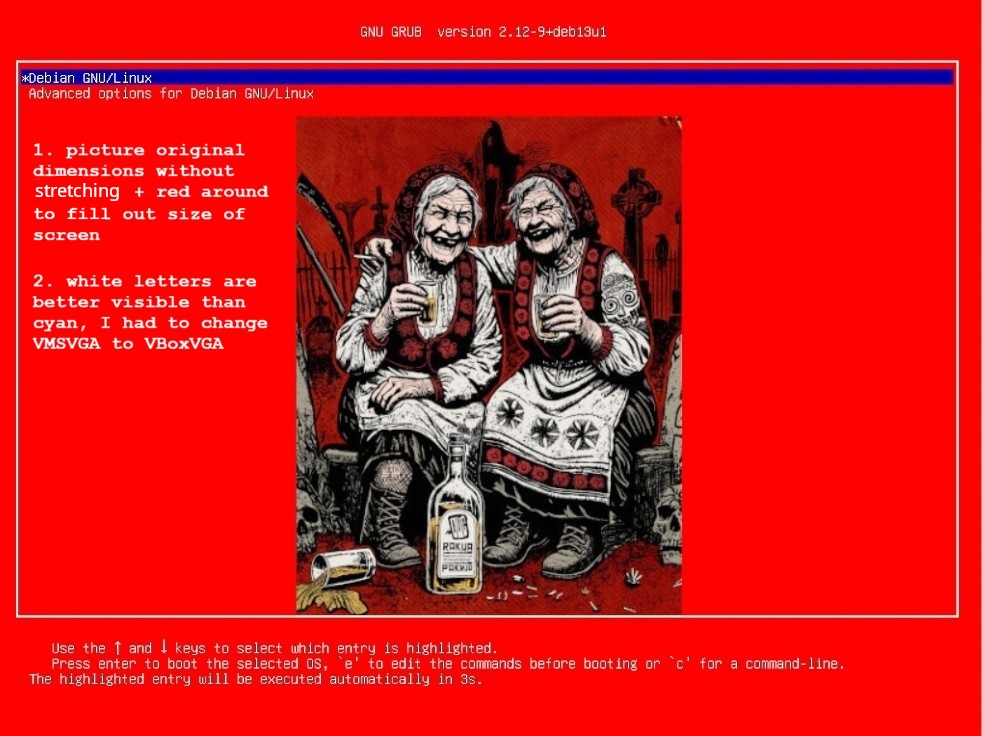
canvas:red means picture will keep its dimensions and around pic will be red color to fill the screen. If you think red is not good for letters of Debian Grub Menu, you can try other color.
Changing the GRUB text color on Debian 13 is little different than before, I want to change it because cyan color of letters is not good visible on red background, I will make it white…
sudo nano /etc/grub.d/40_custom
Add this at the top (important!)
#!/bin/sh
exec tail -n +3 $0
# Force terminal + colors early
set gfxmode=1024x768
terminal_output gfxterm
set color_normal=white/black
set color_highlight=white/blue
close the file Ctrl+x.
Open the GRUB default file:
sudo nano /etc/default/grub
Add this lines:
GRUB_GFXMODE=1024x768
GRUB_GFXPAYLOAD_LINUX=keep
GRUB_TERMINAL_OUTPUT=gfxterm
After saving the file:
sudo update-grub
reboot
The format is foreground/background. So:
• white/black = white text on black background
• white/blue = white text on blue background
GRUB_TERMINAL_OUTPUT=gfxterm – keeps GUI mode
Your background image will still work.
Available Colors
GRUB supports these color names:
• black, blue, green, cyan, red, magenta, brown, light-gray
• dark-gray, light-blue, light-green, light-cyan, light-red, light-magenta, yellow, white
If the color only appears very early (before menu fully loads):
• That’s pre-GRUB or early GRUB framebuffer
• Colors there are hardcoded by GRUB/VirtualBox BIOS
• You usually cannot fully change that part
VirtualBox-specific tip
In VirtualBox settings → Display:
• Try switching:
◦ Graphics Controller: VMSVGA → VBoxVGA
• Disable:
◦ “Enable 3D Acceleration”
This sometimes removes the cyan palette issue entirely.
Here it is how it looks in my case, it is Virtual Box VM so I dont care if I make it public:
(LightDM) Login Screen Background
PNG is strongly recommended for LightDM GTK greeter backgrounds. JPEG can cause issues because:
1. The GTK greeter expects lossless compression
2. JPEG artifacts can cause rendering problems
3. Some versions simply don’t support JPEG
sudo apt install imagemagick
convert your-image.jpg your-image.png
Better option is to place picture in /usr/share/background folder than to just use pic in Pictures folder, so, different displays have different resolution and you should adapt dimensions of pic with your screen resolution:
xrandr # this will show you your resolution, in my case 1920x….
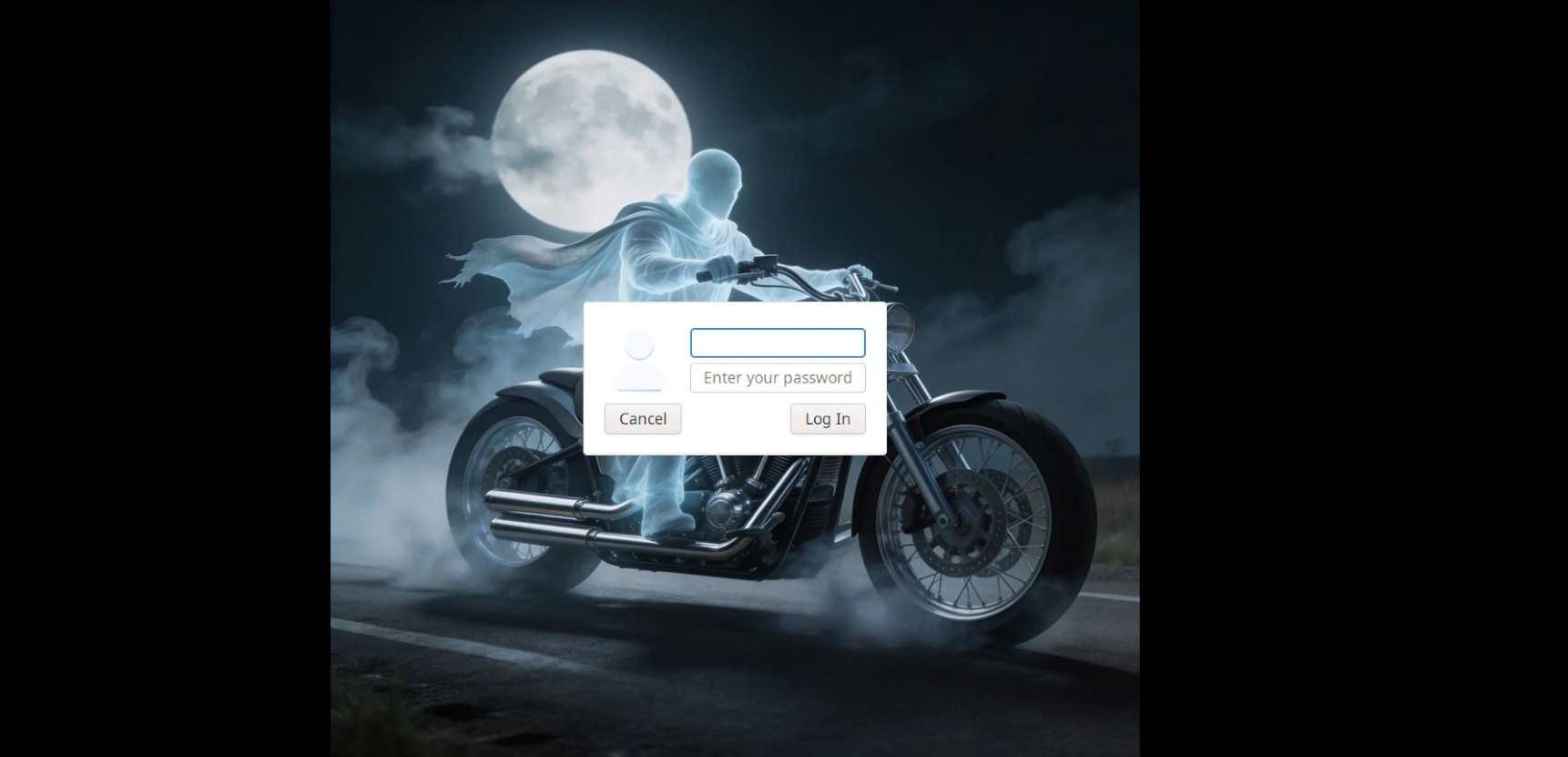
use this command to adapt pic without cropping, I did this inside of mentioned background folder so I don’t need to copy, my pic is called ghost-rider, instead of black background you can choose other color:
sudo convert ghost-rider.png -resize 1920x922 -gravity center -background black -extent 1920x922 final.png
check with file manager if you are happy with new final picture and rename it:
sudo cp ghost-rider.png ghost-rider.png.bak
sudo mv final.png ghost-rider.png
if you are using folder Pictures, you must copy pic:
sudo cp ~/Pictures/background.png /usr/share/backgrounds/
sudo chmod 644 /usr/share/backgrounds/background.png
Check if you use lightdm or gdm:
cat /etc/X11/default-display-manager
you will see something like this: /usr/sbin/lightdm
/etc/lightdm/lightdm-gtk-greeter.conf exists but is commented out. Enable it:
sudo nano /etc/lightdm/lightdm-gtk-greeter.conf
Add/Uncomment these lines:
[greeter]
background = /usr/share/backgrounds/ghost-rider.png
greeter-session = lightdm-gtk-greeter
font-name = Sans 13
theme-name=Adwaita
icon-theme-name=Adwaita
Then restart LightDM or reboot after all changes:
sudo systemctl restart lightdm
Here is how it looks in my case, no cropping, no stretching:
—————————–
If it is not working, try to set background via gsettings
gsettings set org.gnome.desktop.background picture-uri 'file:///path/to/your/image.png'
gsettings set org.gnome.desktop.background picture-uri-dark 'file:///path/to/your/image.png'
# Also try dconf
dconf write /org/gnome/desktop/background/picture-uri "'file:///path/to/your/image.png'"
sudo rm -rf /var/cache/lightdm/*
sudo systemctl restart lightdm